 장보기 계산기Shopping Calculator
원하는 금액에
딱 맞게 담아요
Know your total
before the register
살 것을 적고, 장을 보며 담을 때마다 금액을 넣으면 합계가 바로 쌓입니다. 예산을 정해 두면 얼마나 남았는지 막대로 보여 줍니다.
Write down what you need, enter prices as things go in the cart, and your total adds up as you go. Set a budget and the bar shows how much is left.



 01
예산을 넘지 않는 장보기,
적는 데서 시작해요Staying on budget
starts with a list
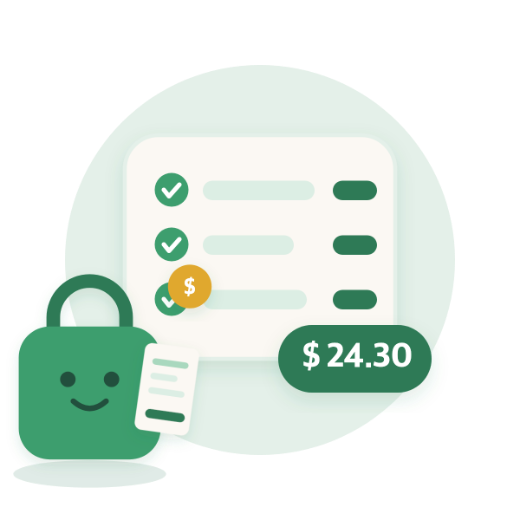
살 것을 미리 적다 보면 정말 필요한 것만 남습니다. 목록에 없는 물건 앞에서는 한 번 더 생각하게 되고요. 금액은 알면 적고, 몰라도 장 보면서 넣으면 됩니다.
Write down what you need, and only what you really need makes the list. Anything that isn't on it gets a second thought. Add prices if you know them, or fill them in while you shop.
 02
담을 때마다 합계가 쌓여요It adds up as you go
담으면서 금액을 적으면 합계가 그 자리에서 늘어나고, 체크한 금액은 옆에 따로 보입니다. 계산대 앞에서 놀랄 일이 없습니다.
Enter a price as something goes in the cart and the total updates on the spot. What you've checked off shows up separately. No surprises at the register.
 03
예산에 딱 맞추기Land right on budget
예산을 정하면 막대에 예산선이 생기고, 가까워질수록 초록에서 노랑, 주황으로 색이 바뀝니다. 할인 쿠폰이 있다면 기준 금액을 예산으로 넣어 보세요. 못 미치면 쓸 수 없고, 넘을수록 할인 비율은 줄어듭니다.
Set a budget and the bar marks the line, shifting from green to yellow to orange as you get close. Got a coupon? Make its minimum your budget. Fall short and it won't apply; go over and the discount shrinks.
 04
다 담았으면,
바로 계산대로All in the cart?
Straight to the register
「남은 것만」을 켜면 담은 건 접히고 아직 안 담은 것만 보입니다. 목록이 비면 「다 담았어요!」가 뜨고요. 더 둘러볼 이유가 없습니다.
Turn on Remaining and checked items fold away, leaving only what you still need. When the list runs out, you'll see “All in the cart!” No reason to wander the aisles.
장보기 부탁할 땐,
목록째 보내요Asking someone to shop?
Send the whole list
⋯ 메뉴의 「공유」로 보내면 금액과 예산까지 같이 갑니다. 받은 사람은 링크를 눌러 「추가」만 하면 같은 목록, 같은 예산으로 장을 봅니다.
Share it from the ⋯ menu and the prices and budget go with it. They tap the link, tap Add, and shop the same list on the same budget.
추가하면 이 목록으로 바로 장을 볼 수 있어요.Add it and start shopping right away.
계산기는
키패드 안에The calculator
is in the keypad
사칙연산과 할인 % 키가 키패드에 들어 있어서, 계산기를 따로 켜지 않고 그 자리에서 값을 넣습니다.
Arithmetic keys and a discount % key are built into the keypad. No second calculator - the number goes in right where you are.
- ×여러 개면 곱하기로Multiply for multiples두 팩을 담았으면 금액 × 2Two packs? Price × 2
- %할인 %를 누르고 할인율만 적으면 끝Tap Discount % and enter the rate할인된 금액이 바로 들어갑니다The discounted price goes straight in
- 2+1+1개수 행사도 같은 자리에서Multi-buy deals too2+1 행사처럼 개수로 묶인 할인도 같은 키패드에서 계산합니다.Deals like buy 2, get 1 free work out on the same keypad.
어느 나라 마트든,
그 나라 돈으로Whatever the country,
its own currency
설정에서 통화를 고르면 기호와 소수점, 천 단위 구분이 그 나라 방식대로 바뀝니다.
Pick a currency in Settings, and symbols, decimals, and separators follow local conventions.
- 원 · 엔은 정수로, 달러 · 유로 · 파운드 · 위안 · 멕시코 페소 · 브라질 헤알은 소수 둘째 자리까지 표시합니다.
- 세금과 팁은 목록 화면의 ⋯ 메뉴 「세금 · 팁」에서 켠 목록에만 더해집니다.
- 앱은 한국어 · English · Español · 日本語 · Português로 쓸 수 있습니다. 처음엔 기기 언어를 따르고, 설정에서 바꿀 수 있습니다. 이 소개 페이지는 한국어와 English로 제공합니다.
- Won and yen show as whole numbers; dollar, euro, pound, yuan, Mexican peso, and Brazilian real go to two decimals.
- Tax and tip are added only to lists where you turn them on, from Tax & tip in the ⋯ menu.
- Brim is available in Korean, English, Spanish, Japanese, and Portuguese. It starts in your device language, and you can change it in Settings. This page is available in Korean and English.
자주 묻는 질문FAQ
데이터가 다른 기기에도 동기화되나요?
아니요. 모든 목록 데이터는 사용하시는 기기 안에만 저장됩니다. 계정이 없어 서버로 전송되지 않으며, 기기를 바꾸거나 앱을 삭제하면 데이터도 함께 사라집니다. 목록 하나를 다른 폰으로 옮기려면 ⋯ 메뉴의 「공유」로 보내고, 그 폰에서 링크를 눌러 추가해 주세요.
받은 링크를 눌렀는데 목록이 안 들어가요.
링크를 누르면 「목록이 왔어요」 창이 뜨고, 「추가」를 눌러야 들어갑니다(쓰던 목록은 과거 체크리스트에 남습니다). 창이 뜨지 않으면 담은을 최신 버전으로 업데이트한 뒤 링크를 다시 눌러 주세요. 앱을 방금 받았다면 링크를 한 번 더 누르면 됩니다. 「목록을 열 수 없어요」가 뜨면 링크가 중간에 잘린 것이니, 보낸 사람에게 다시 공유해 달라고 해 주세요.
예산을 정했는데 게이지가 안 보여요.
예산을 설정해야 게이지가 나타납니다. 목록 화면 오른쪽 위 ⋯ 메뉴에서 예산 변경을 눌러 금액을 정해 주세요.
새로 시작했더니 쓰던 목록이 없어졌어요.
쓰던 목록은 과거 체크리스트에 「완료 안 함」으로 남습니다. 열어서 「이어서 하기」를 누르면 그대로 이어서 쓸 수 있습니다. 필요 없으면 그 화면의 ⋯ 메뉴에서 삭제할 수 있습니다.
Does my data sync to my other devices?
No. All list data is stored only on the device you are using. There is no account and none of it is sent to a server, so your lists do not carry over to a new device. To move one list to another phone, send it with Share in the ⋯ menu, then tap the link on that phone to add it.
I tapped a shared link, but the list didn't show up.
Tapping the link opens "A list was shared with you" - tap Add to use it (your current list is saved to History). If nothing opens, update Brim to the latest version and tap the link again. If you just installed the app, tap the link once more. If you see "Couldn't open the list," the link was cut off - ask the sender to share it again.
I set a budget but I do not see the gauge.
The gauge appears only after a budget is set. Open the ⋯ menu at the top right of a list and choose Change budget.
I started a new list. Where did my old one go?
It's saved in History, marked Not completed. Open it and tap Continue to pick up where you left off. If you don't need it, delete it from the ⋯ menu on that screen.
다음 장보기는
예산 안에서
Finish your next
shop on budget